
Improve your map experience in Security Desk
-
In a multi-camera supervision session, the map is often the fastest way to understand where an event is happening. Yet without assistance, the operator has to pan the map by hand every time they switch camera in order to find its location - a repetitive and slow operation that pulls attention away from the video.
The ADDONXPERT MAP EXTENSIONS plugin adds automatic map centering and advanced selection tools to Genetec Security Center. Once enabled from the map context menu, every selection of an entity placed on the map triggers an instant re-centering of the map view, so operators keep their eyes on the video while permanently seeing the geographic position of what they are watching.
• Automatic centering: The map re-centers in real time on the camera or entity the operator displays or selects in the tile pattern.
• Multi-selection with adaptive zoom: Select several cameras at once and the map centers on the middle of the selection, adjusting the zoom so that every selected entity fits in the view.
• Enable / disable on the fly: Instant mode switching from the map context menu (right click > Map extensions), with no restart and no configuration.
• Status banner: An "Auto-center mode activated" banner is displayed at the bottom of the map so the operator always knows the tracking is active.
• Zoom level preserved: On a single selection, only the center point of the map moves - the operator keeps the zoom level they chose.
• Lasso selection: Draw a freehand lasso around a group of entities on the map - a more flexible alternative to the native rectangle selection - then bring them into Security Desk - filling the free tiles of the current page or opening a new Monitoring task.
• Multi-camera click selection (keyboard shortcut): Hold the keyboard shortcut and successively click on the desired cameras - no video popup appears during selection (contrary to Security Center's default behavior where every click opens a popup that hides the cameras below). Release the shortcut and all selected camera streams display at once. Ideal for precise non-contiguous selections.
• Per-operator persistence: The centering target is saved per operator: on reconnection, from the same or another workstation, auto-centering resumes on the last tile or map used.
• Privilege: The "Use auto-centering" user privilege restricts the feature to selected operator roles.
By automating a gesture operators repeat dozens of times a day, MAP EXTENSIONS noticeably improves responsiveness and supervision comfort, with no change to existing habits.
Plugin features
Technical diagram
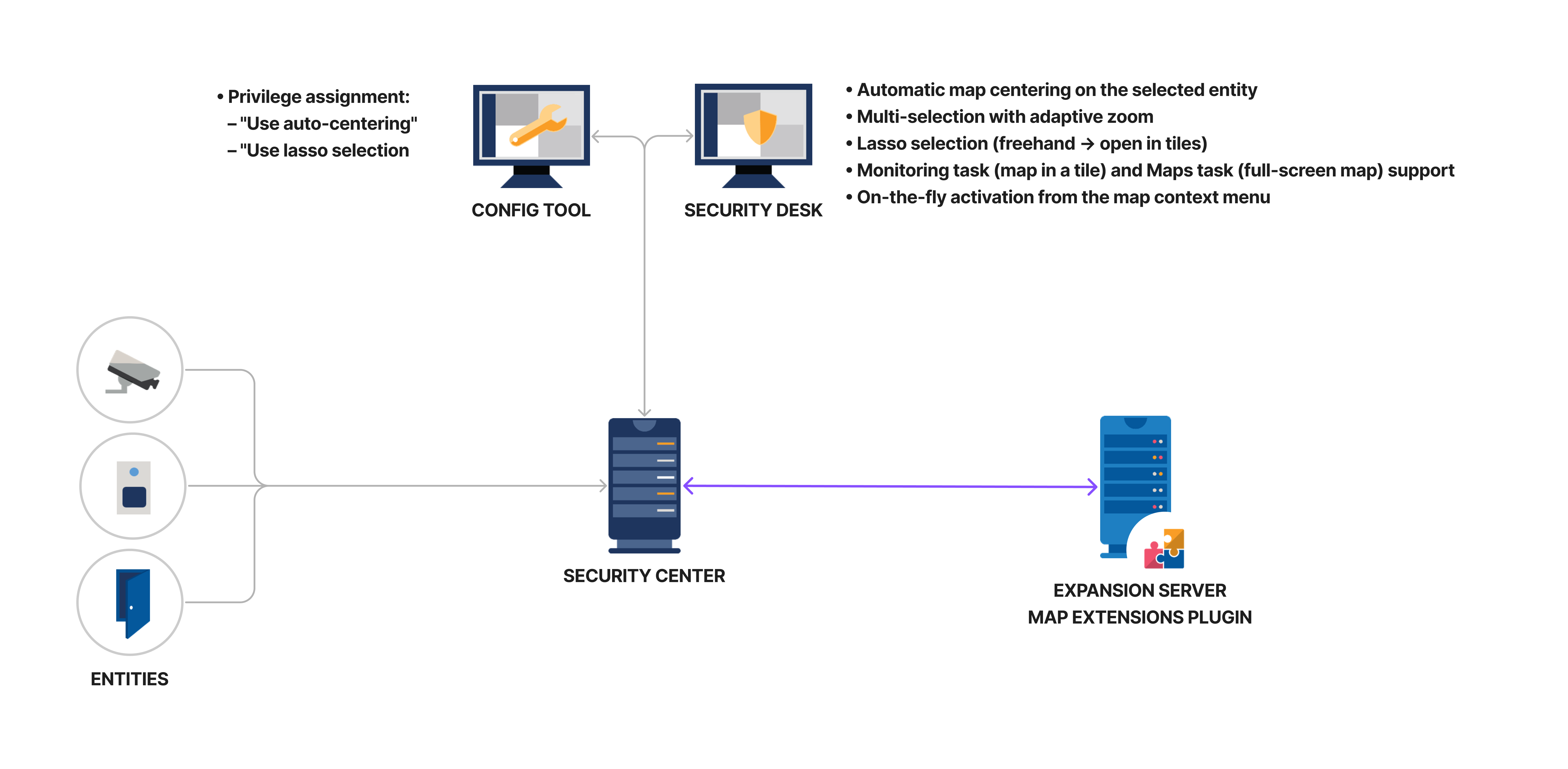
Automatic map centering
-
Auto-centering is enabled from the map context menu - right click on the map, then select Map extensions > Enable auto-centering mode. An "Auto-center mode activated" banner confirms it is on. From then on, when the operator displays or selects an entity, the map re-centers on it instantly while keeping the current zoom level.
- Only one centering target is active at a time - enabling it on another tile or map replaces the previous one
- The mode is disabled automatically when the tile is cleared or replaced, when the task is closed, or when the map of a Maps task is changed
- When an entity is placed at several locations on the map, centering uses the midpoint of all its instances and every instance is highlighted
play_circle
Demo: automatic map centering on the selected entity
Multi-selection and adaptive zoom
-
Centering is not limited to a single entity. Holding Ctrl (the default modifier), the operator keeps several entities selected at once; the plugin then computes the geographic centre of the whole selection, re-centers the map on that point and adjusts the zoom so that every selected entity stays in view.
For example, three cameras forming a triangle center on the middle of the triangle, with the zoom set just wide enough to keep the three of them in view.
play_circle
Demo: multi-selection with adaptive zoom on the barycenter
Lasso selection
-
Security Center offers a rectangle selection on maps. MAP EXTENSIONS adds a lasso: the operator draws a freehand shape around the entities they want, which makes it possible to follow a road, a perimeter or a building outline instead of being limited to a rectangle.
The entities captured by the lasso are shown in Security Desk right away: they first fill the free tiles of the current page; if there are not enough, an existing task with enough tiles is reused; and only as a last resort is a new Monitoring task created.
play_circle
Demo: drawing the lasso and pushing entities into Security Desk
play_circle
Demo: lasso selection then automatic centering
Key features and capabilities
| Feature | Description |
|---|---|
| my_location Automatic map centering | |
| Automatic map centering | Instant re-centering of the map on the entity displayed or selected by the operator, keeping the current zoom. |
| Supported entities | Every entity placed on the map - cameras, doors, areas, readers, intrusion units and more. Alarms and nested maps are excluded. |
| Multi-instance entities | When an entity has several instances on the map, the view centers on the midpoint of all instances and every instance is highlighted. |
| Enable/disable on the fly | The mode is switched at any time from the map context menu, with no restart and no administrator involvement. |
| Status banner | An "Auto-center mode activated" banner indicates that tracking is active. |
| Zoom level preserved | On a single selection, only the center point of the map moves - the operator keeps the current zoom level. |
| select_all Multi-selection and adaptive zoom | |
| Ctrl multi-selection | Hold Ctrl (default modifier) to keep several entities selected at once. |
| Adaptive zoom | The map centers on the midpoint of the selection and the zoom is set so every selected entity fits in the view. |
| gesture Lasso selection | |
| Freehand lasso | Draw a freehand shape around entities on the map - a more flexible alternative to the native rectangle selection. |
| Results in Security Desk | Captured entities fill the free tiles of the current page, reuse an existing task with enough tiles, or open a new Monitoring task. |
| dashboard Security Desk tasks | |
| Monitoring task | The map is displayed in a tile of the tile pattern, alongside cameras, doors and alarms. |
| Maps task | The map fills the whole window - ideal for dedicating a full monitor to map tracking. |
| shield Control and availability | |
| Dedicated user privilege | The "Use auto-centering" privilege restricts the feature to selected operator roles. Without it, the context menu does not appear. |
| Per-operator persistence | The centering target is saved per operator and resumes on the last tile or map used at the next login, from any workstation. |
| Native Security Center role | The plugin is installed as a standard Security Center role, with a client part (Config Tool) and a server part. |
| Federation support | Works in a federated Security Center environment (Genetec Federation). |
| Security Center compatibility | Compatible with Security Center 5.12, 5.13 and 5.14. |
Frequently Asked Questions
Overview
What does the MAP EXTENSIONS plugin do?
MAP EXTENSIONS adds advanced features to Security Center mapping: automatic re-centering on the selected entity, multi-selection with adaptive zoom, lasso selection, and multi-camera click selection via keyboard shortcut (no video popup during selection). All features are available in both the Monitoring and Maps tasks.
Why do I need a centering plugin when Security Center already has maps?
Security Center offers static maps: operators must manually pan every time they change camera. MAP EXTENSIONS automates this action, repeated dozens of times per day, and adds multi-selection tools not available natively (lasso, click-selection without popup) - significantly improving responsiveness and monitoring comfort without changing existing habits.
What are the 4 features provided by the plugin?
1) Automatic map re-centering on the entity selected by the operator. 2) Multi-selection with adaptive zoom: the map fits to display all selected entities. 3) Lasso selection: freely encircle a group of entities. 4) Multi-camera click selection via keyboard shortcut: click successively without the video popup appearing, then release to display all streams at once.
Compatibility & prerequisites
Which Security Center versions are supported?
Genetec Security Center 5.11, 5.12, 5.13 and 5.14.
Does the plugin also work in the Monitoring task?
Yes. All 4 features are active in the Monitoring task, with no additional configuration required.
Does the plugin also work in the Maps task?
Yes. All 4 features are active in the Maps task, with no additional configuration required.
Is it compatible with Security Center SaaS?
No. The plugin requires an on-premise Security Center deployment because it installs as a native Genetec server role. Security Center SaaS is not currently supported.
Features
How does automatic re-centering work?
The operator activates the mode from the map context menu (right-click > Map Extensions > Enable auto-centering). An 'Auto-center mode activated' banner is shown. From then on, each entity selection instantly re-centers the view on it while keeping the current zoom level. On multi-selection, zoom adapts to encompass all entities.
How does lasso selection work?
The operator freely draws a shape around a group of entities on the map. All entities within the lasso are added to the selection. Cameras can then be opened in free tiles of the current page or in a new Monitoring task. More flexible than Security Center's native rectangle selection.
How does the manual keyboard-shortcut selection work?
Hold the keyboard shortcut and successively click on the desired cameras: no video popup appears during selection (contrary to Security Center's default behavior where every click opens a popup that hides the cameras below). Release the shortcut and all selected camera streams display at once. Ideal for precise non-contiguous selections.
Is there any impact on Security Center performance?
No. The plugin runs on the Security Desk client side and adds no server load. Map re-centering is instantaneous; multi-selection and lasso are optimized for maps containing thousands of entities.
Does the plugin work with maps containing thousands of entities?
Yes. The plugin is optimized for large maps containing thousands of entities (smart cities, multi-site campuses, industrial sites). Re-centering and selections remain fluid even on the densest maps.
Licenses
What licenses are required?
ADX-MAPEXTENSIONS-BASE (base license) + SMA-MAPEXTENSIONS-1Y to 5Y (mandatory annual maintenance) + one Genetec SDK connection (GSC-SDK-ADDONXPERT-MAPEXT) per Security Center server.